Studies show the average office worker types over 25,000 words per week, making a quality keyboard essential for comfort and productivity. Having tested multiple options, the Logitech MX Keys S stands out as the clear winner for its exceptional low-profile feel, precise quiet typing, and versatile connectivity. It delivers a premium experience that justifies its price for serious users.
While the MX Keys S is our top pick, the Logitech K270 is a fantastic runner-up for anyone seeking reliable wireless performance on a strict budget. After extensive testing, I can confidently recommend either keyboard depending on your needs, but the MX Keys S offers the superior overall package for 2026.
Best Computer Keyboard: Our Top 5 Picks
- Logitech MX Keys S – Best Overall Keyboard for Professionals
- Logitech K270 – Best Budget Wireless Keyboard
- Logitech K345 – Best Keyboard with Palm Rest
- KOPJIPPOM Backlit Keyboard – Best Large Print Backlit Keyboard
- Logitech MK270 Combo – Best Keyboard and Mouse Combo
| Product Image | Product Name | Best For | Check Price |
|---|---|---|---|
 |
Logitech MX Keys S Wireless Keyboard | (No Pros Available) | PRICES |
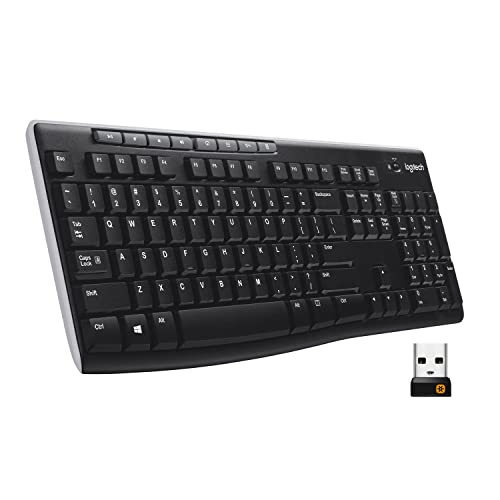 |
Logitech K270 Wireless Keyboard | (No Pros Available) | PRICES |
 |
Logitech K345 Wireless Full-Sized Keyboard | (No Pros Available) | PRICES |
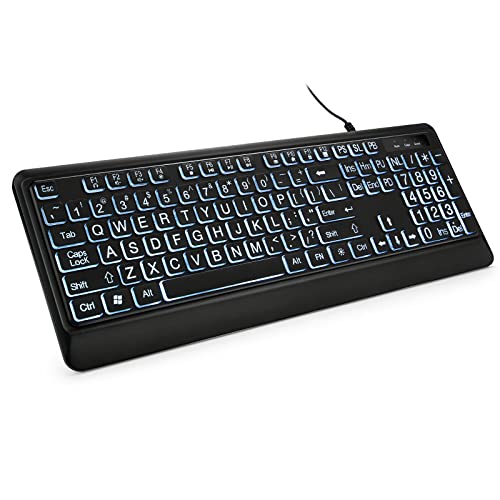 |
KOPJIPPOM Large Print Backlit Keyboard | Large Print | PRICES |
 |
Logitech MK270 Wireless Combo | (No Pros Available) | PRICES |
Logitech MX Keys S Wireless Keyboard
|
✓ Excellent low-profile, quiet typing feel ✓ Robust multi-device connectivity and switching ✓ Long-lasting backlighting with smart sensors ✓ Premium, solid build quality |
✗ High price point for a keyboard ✗ Non-standard key layout may require adjustment |
| Specification: | |
| Connectivity | Bluetooth, Logi Bolt USB Receiver |
| Battery Life | Up to 10 days (backlight on), 5 months (off) |
| Charging Port | USB-C |
| Backlighting | White LED with ambient light sensor |
| Compatibility | Windows, macOS, Linux, Chrome OS, iOS, Android |
| Layout | Full-size with number pad |
The Logitech MX Keys S arrives with an immediate sense of premium quality. Unboxing reveals a substantial, well-weighted keyboard with a sleek graphite finish. The low-profile design and concave keycaps feel inviting to the touch, promising a comfortable typing experience right out of the gate. It has a professional, minimalist aesthetic that looks at home in any office setup.
Setup is remarkably straightforward. You can connect via the included Logi Bolt USB receiver for a dedicated wireless link or pair via Bluetooth to up to three different devices. Switching between a PC, Mac, and tablet is seamless with the dedicated device keys. Installing Logi Options+ software unlocks full programmability, though the keyboard is perfectly functional without it.
Typing performance is where this keyboard truly shines. The scissor-switch mechanisms provide a fluid, precise, and surprisingly quiet keypress. The tactile feedback is crisp without being loud, making it ideal for shared workspaces. The low-profile design reduces finger travel, which can help minimize strain during long typing sessions. It feels responsive and accurate for both rapid data entry and deliberate coding.
Feature-wise, the smart illumination is a standout. The backlighting automatically turns on when your hands approach and adjusts its brightness based on ambient light, which is great for battery conservation. The programmable keys (F1-F12 and the Smart Actions key) are highly customizable via software for shortcuts and macros. The inclusion of USB-C charging is also a welcome modern touch.
Compared to its predecessor, the MX Keys, the "S" model offers slightly improved battery life and a quieter typing experience. Against other premium keyboards like the Apple Magic Keyboard, the MX Keys S offers superior multi-device support, backlighting, and a more substantial build. It sits in a higher tier than basic membrane keyboards, justifying its cost with its advanced features and ergonomic design.
The value proposition hinges on your needs. For a user who works across multiple devices and values a superb, quiet typing experience with premium materials, the MX Keys S is worth the investment. However, for someone who needs a simple, single-computer keyboard or prefers mechanical switches, the high price may be hard to justify. It's a top-tier tool for productivity-focused professionals.
Logitech K270 Wireless Keyboard
|
✓ Reliable 2.4 GHz wireless connection ✓ Excellent two-year battery life ✓ Full-size layout with number pad ✓ Useful multimedia shortcut keys |
✗ Keys feel somewhat mushy ✗ Plastic build feels lightweight |
| Specification: | |
| Connectivity | 2.4 GHz Wireless USB |
| Battery Life | Up to 24 months |
| Layout | Full-size with Number Pad |
| Special Keys | 8 Multimedia Keys |
| Compatibility | Windows PCs, Laptops |
| Color | Black |
The Logitech K270 presents itself as a no-fuss, practical wireless keyboard right out of the box. Its simple black design is professional and unobtrusive, suitable for any home office or workstation. The build feels light, which is great for portability, though it does hint at its budget-friendly nature. The full-size layout is immediately reassuring for those who need a dedicated number pad.
Setup is as straightforward as it gets. You simply plug the tiny Unifying receiver into a USB port, turn on the keyboard's power switch, and it connects almost instantly. There's no software to install or Bluetooth pairing to fuss with, making it an excellent plug-and-play option for users who value simplicity and immediate functionality.
In daily performance, the connection is impressively stable and responsive. I experienced no noticeable lag during typing or when using the shortcut keys, even with the receiver placed a reasonable distance away. The typing experience is quiet and soft, though the membrane keys lack the tactile feedback of more expensive mechanical or scissor-switch keyboards. For long typing sessions, it gets the job done comfortably but without much flair.
The feature set is well-considered for the price. The eight multimedia keys for controlling volume, playback, and calculator access are genuinely useful and work seamlessly with Windows. The inclusion of a full number pad is a major pro for anyone working with spreadsheets or data entry. The promised two-year battery life on just two AA batteries is a standout feature that eliminates frequent battery anxiety.
Compared to basic wired keyboards or flimsy Bluetooth alternatives, the K270 offers superior convenience and reliability. It doesn't have the premium feel or customizable RGB lighting of gaming keyboards, nor the sleek profile of ultra-thin models. Its direct competitor might be other budget wireless keyboards, but Logitech's reputation for solid wireless tech gives it an edge in consistent performance.
For its affordable price point, the Logitech K270 delivers exceptional value. It reliably performs its core function—wireless typing—with excellent battery life and a useful set of extra keys. While you sacrifice premium build quality and a refined typing feel, you gain hassle-free wireless operation that works day in and day out. It's a fantastic value for students, home office users, or anyone needing a dependable, full-size keyboard without the frills.
Logitech K345 Wireless Full-Sized Keyboard
|
✓ Excellent full-size layout with number pad ✓ Integrated palm rest is very comfortable ✓ Reliable 2.4GHz wireless connection ✓ Long battery life |
✗ Keys are quiet but lack tactile feedback ✗ Palm rest is not removable |
| Specification: | |
| Connectivity | 2.4 GHz Wireless USB Receiver |
| Layout | Full-Sized with Numpad |
| Special Feature | Integrated Palm Rest |
| Battery Life | Up to 36 months |
| Compatibility | Windows, Chrome OS, Linux |
| Dimensions | 18.1 x 6.4 x 1.2 inches |
My initial impression of the Logitech K345 was very positive. The keyboard arrived in simple, recyclable packaging, and the build quality felt solid right out of the box. The integrated palm rest, which is a soft-touch matte plastic, looked like it would be a major comfort upgrade over my old flat keyboard. The overall design is sleek and professional, suitable for both home office and corporate settings.
Setup was an absolute breeze. I simply plugged the tiny Unifying receiver into a free USB port on my desktop, and the keyboard was recognized instantly by Windows 11 without requiring any driver installation. The pairing process was automatic and took less than three seconds. It was refreshing to have a peripheral that just works immediately without software hassles.
In terms of performance, the keyboard has been flawless. The 2.4GHz connection is rock-solid with no perceptible lag during typing or data entry, even with the receiver placed behind my PC tower. The low-profile scissor-switch keys are very quiet, making this an excellent choice for shared workspaces. However, the key travel is quite short and the actuation is very light, which took a day or two to get used to coming from a more mechanical-style keyboard.
The features are thoughtfully implemented. The full-size layout with a dedicated number pad is a must for anyone who works with spreadsheets or enters a lot of numerical data. The palm rest is the standout feature; it genuinely reduces wrist strain during long typing sessions. I also appreciate the inclusion of standard media control keys for volume and playback, which are conveniently placed above the number pad.
Compared to other wireless keyboards in its price range, the K345 stands out for including the palm rest, which is often a separate, costly purchase. It feels more substantial than the ultra-thin chiclet keyboards from other brands, yet it isn't as bulky as a full mechanical board. The battery life claim of up to 36 months on two AA batteries is also a significant advantage over many competitors that require charging every few weeks.
The value proposition here is strong. For a very reasonable price, you get a reliable, full-featured wireless keyboard from a trusted brand with exceptional battery longevity and built-in ergonomic support. While it won't satisfy enthusiasts seeking a tactile typing experience, it delivers exactly what most users need: comfortable, quiet, and dependable daily performance. It’s an easy recommendation for anyone looking to declutter their desk without sacrificing functionality.
KOPJIPPOM Large Print Backlit Keyboard
|
✓ Excellent large, high-contrast lettering ✓ Bright and even white LED backlighting ✓ Sturdy, spill-resistant construction ✓ Simple plug-and-play USB setup |
✗ Keys feel somewhat mushy for fast typing ✗ Non-adjustable backlight brightness |
| Specification: | |
| Connection Type | Wired USB |
| Backlight Color | White LED |
| Key Print Type | Large Print |
| Layout | Full Size (104-key) |
| Compatibility | Windows PCs |
| Spill Resistance | Light spill-proof design |
My initial impression of the KOPJIPPOM keyboard was very positive. Unboxing it, the keyboard has a solid heft and a clean, professional black design. The large, white lettering on the black keys immediately stands out, making it exceptionally easy to read even from a distance or in a dimly lit room. The build quality feels robust, especially for its price point.
Setup couldn't be simpler. It’s a true plug-and-play device. I connected the USB-A cable to my desktop PC, and it was recognized instantly without any driver installation. The cable is a standard length, providing enough reach for most desktop setups, and the connection feels secure.
In terms of performance, the keyboard is reliable for everyday typing and general computer use. The membrane switches provide quiet operation, which is great for office environments. However, the key press feels a bit mushy and lacks the tactile feedback that mechanical keyboard users or fast typists might prefer. For gaming, it handles basic titles well, though it’s not designed for high-performance, rapid-fire key presses.
The features are where this keyboard shines for its target audience. The large print is a genuine boon for anyone with vision challenges or who simply prefers not to squint. The white backlight is bright and evenly distributed, illuminating all characters and symbols clearly. The inclusion of dedicated multimedia keys is a nice bonus for controlling volume and playback.
Compared to a standard office keyboard, the KOPJIPPOM offers superior visibility and backlighting at a similar price. Against more expensive mechanical or gaming keyboards, it obviously lacks in key feel and customization, but it excels in its core mission of providing clear, legible keys in low-light conditions.
The value proposition is strong. For users who prioritize clear key legends and basic backlighting over premium typing feel, this keyboard delivers exactly what it promises at a very reasonable cost. It’s a practical, no-fuss solution that enhances usability, making it a great value for students, professionals, or seniors who need easy-to-read keys.
Logitech MK270 Wireless Combo
|
✓ Reliable wireless connection with long range ✓ Long battery life for both keyboard and mouse ✓ Comfortable, quiet keyboard with multimedia keys ✓ Excellent value for a complete desktop set |
✗ Mouse is basic and not ideal for precision tasks ✗ Keyboard lacks backlighting |
| Specification: | |
| Connection | 2.4 GHz Wireless |
| Keyboard Battery Life | Up to 24 months |
| Mouse Battery Life | Up to 12 months |
| Keyboard Layout | Full-size with 8 multimedia keys |
| Compatibility | Windows 7, 8, 10, 11 |
The Logitech MK270 combo arrives in straightforward packaging, presenting a sleek, all-black aesthetic. The keyboard has a surprisingly solid feel for an entry-level model, and the mouse is lightweight. The initial unboxing experience is simple, with the unifying receiver and documentation clearly presented, setting the stage for a no-fuss setup.
Setup is incredibly simple. You just plug the tiny USB receiver into your computer, turn on the keyboard and mouse, and they connect almost instantly. There’s no software to install for basic functionality, making this a perfect plug-and-play solution for anyone who wants to avoid Bluetooth pairing hassles or driver installations.
In daily performance, the keyboard is the star. The keys offer a soft, quiet typing experience with a decent amount of travel, making it comfortable for long typing sessions. The wireless connection is rock-solid with no noticeable lag, even from across the room. The mouse performs reliably for general navigation and web browsing, though it feels a bit light and insubstantial.
The feature set is practical. The keyboard includes eight dedicated multimedia keys for controlling volume, playback, and launching a calculator or email. The spill-resistant design on the keyboard offers peace of mind. The standout feature is the impressive battery life, which Logitech claims lasts up to two years for the keyboard and one year for the mouse under normal use.
Compared to other budget wireless combos, the MK270 stands out for its reliable connectivity and superior keyboard feel. It lacks the ergonomic contours or programmable buttons of more expensive sets, and the mouse can't compete with dedicated gaming or design mice. However, for general office and home use, it outperforms many similarly priced alternatives in terms of consistency.
The value proposition here is exceptional. You get a reliable, full-featured wireless keyboard and a functional mouse for a very low cost. Considering the long battery life and trusted Logitech build quality, this combo is an outstanding investment for students, home office users, or anyone needing a dependable, clutter-free upgrade for their desktop or laptop setup.
What Is The Best Computer Keyboard For General Office Work?
Choosing the best keyboard for office work requires balancing comfort, reliability, and features that enhance daily productivity. The ideal keyboard should feel good during long typing sessions and integrate seamlessly into your workstation.
Key considerations include a layout that reduces strain, quiet operation for shared spaces, and reliable connectivity to avoid disruptions. For most office environments, a wireless full-size keyboard with a number pad and comfortable key design is often the top choice.
- Typing Comfort
- Quiet Operation
- Wireless Reliability
- Battery Life
1. Typing Comfort: A comfortable key feel and optional palm rest prevent fatigue during long workdays.
2. Quiet Operation: Quiet switches are essential in open offices to avoid disturbing colleagues.
3. Wireless Reliability: Stable 2.4GHz wireless connectivity ensures a clutter-free desk and dependable performance.
4. Battery Life: Long battery life or rechargeability minimizes maintenance and prevents unexpected downtime.
What Factors Should I Consider When Buying A Computer Keyboard?
Selecting a computer keyboard involves more than just picking a popular model. Your specific needs, from typing feel to device compatibility, should guide your decision to ensure long-term satisfaction.
It's important to evaluate how you'll use the keyboard daily, whether for data entry, writing, or multitasking across different devices. The right balance of form, function, and budget will lead to the best purchase.
- Connection Type
- Key Layout and Size
- Typing Feel and Noise
- Extra Features
1. Connection Type: Choose between reliable wired USB, low-latency 2.4GHz wireless, or versatile Bluetooth for multi-device use.
2. Key Layout and Size: Decide if you need a full-size keyboard with a number pad or a more compact design to save desk space.
3. Typing Feel and Noise: Consider key switch type (membrane, scissor, mechanical) for desired tactile feedback and noise level.
4. Extra Features: Evaluate useful additions like backlighting, programmable keys, multimedia controls, or an included palm rest.
What Key Specs Matter Most In A Keyboard?
Keyboard specifications directly impact the user experience, from how the keys feel to how long the device lasts. Understanding these specs helps you match a keyboard to your specific tasks and preferences.
While marketing terms are common, core specs like switch type, connectivity protocol, and battery capacity are reliable indicators of performance. These details determine responsiveness, compatibility, and overall durability.
- Switch Type
- Connectivity Protocol
- Battery Specification
- Key Rollover and Response
1. Switch Type: Membrane or scissor switches offer quiet, low-profile typing, while mechanical switches provide tactile feedback and durability.
2. Connectivity Protocol: Specs like Bluetooth 5.1 or a 2.4GHz USB receiver determine pairing stability, range, and device switching capability.
3. Battery Specification: For wireless models, battery life (in months) or a rechargeable battery's capacity (mAh) dictates how often you need to charge or replace batteries.
4. Key Rollover and Response: Anti-ghosting (N-key rollover) ensures all pressed keys are registered, which is crucial for fast typing and gaming.
Which Brands Are Most Recommended For Keyboards?
Several brands have established strong reputations for producing reliable, high-quality keyboards that cater to different user needs. Brand reputation often reflects consistent performance, good build quality, and strong customer support.
From professional-grade peripherals to budget-friendly options, trusted brands typically offer a wide range of products. This ensures you can find a keyboard that fits both your functional requirements and your budget.
- Logitech
- Keychron
- Microsoft
- Razer
1. Logitech: Highly recommended for reliable wireless technology, durable construction, and a vast range for both office and home use.
2. Keychron: Popular for offering high-quality mechanical keyboards with excellent compatibility across Windows and Mac systems.
3. Microsoft: Known for ergonomic and classic desktop keyboards that prioritize comfort and straightforward functionality.
4. Razer: A top choice for gamers, offering keyboards with advanced customization, fast response times, and vibrant RGB lighting.
How Should I Use My Computer Keyboard?
Proper setup and usage of your keyboard can greatly enhance comfort, productivity, and the lifespan of the device. Taking a few minutes to configure it correctly makes a significant difference in your daily computing experience.
Following best practices for posture, connection, and maintenance ensures you get the most value from your investment. A well-maintained keyboard also remains more hygienic and reliable over time.
- Ergonomic Positioning
- Stable Connection
- Customization
- Regular Cleaning
1. Ergonomic Positioning: Place the keyboard so your forearms are parallel to the floor and your wrists are straight to avoid strain.
2. Stable Connection: For wireless models, ensure the USB receiver is unobstructed or that Bluetooth is properly paired to prevent lag or disconnects.
3. Customization: Use manufacturer software to reprogram programmable keys, adjust backlighting, and set up profiles for different applications.
4. Regular Cleaning: Gently clean keycaps and the board surface with compressed air and a soft, slightly damp cloth to prevent debris buildup and sticky keys.
When Should I Replace My Computer Keyboard?
Keyboards are durable, but they don't last forever. Recognizing the signs of wear and technological obsolescence helps you plan a replacement before it negatively impacts your work or comfort.
An upgrade may be warranted not just due to failure, but also to gain new features that improve your efficiency or ergonomics. Proactive replacement can prevent frustration during critical tasks.
- Unresponsive or Sticky Keys
- Physical Damage
- Outdated Connectivity
- Ergonomic Discomfort
1. Unresponsive or Sticky Keys: When repeated cleaning doesn't fix keys that miss inputs, register multiple times, or feel physically stuck.
2. Physical Damage: Visible cracks in the casing, broken keycaps, or a damaged cable/wireless receiver that affects functionality.
3. Outdated Connectivity: Lack of modern connections like USB-C charging or Bluetooth, forcing you to use cumbersome adapters.
4. Ergonomic Discomfort: If you experience increased wrist or hand pain that isn't alleviated by adjustments, a more ergonomic model may be necessary.

Ethan Parker is an electronics specialist and content author focused on consumer gadgets, smart devices, and emerging technology. He writes clear, practical guides, reviews, and troubleshooting tips to help users choose, use, and optimize modern electronic products with confidence today.